
Convert images to WebP.
WebP weighs less than JPEG and PNG, opens in every current browser and supports transparency. Here's how to convert, seeing what you lose.
Published on
Why WebP
At the same perceived quality, WebP weighs less than JPEG: in our measurements with 24 photos, 6% less when you can't tell it apart side by side, and 23% less when you can't tell it apart even up close. Against the original PNG, it saves 88%.
It also keeps transparency (like PNG) and has a lossless mode that works very well for screenshots and logos. Chrome, Safari, Firefox and Edge open it, and so does almost any current editing app.
- −23%
- vs JPEG, without it showing even up close
- −88%
- vs the original PNG
- All
- current browsers open it
With the app
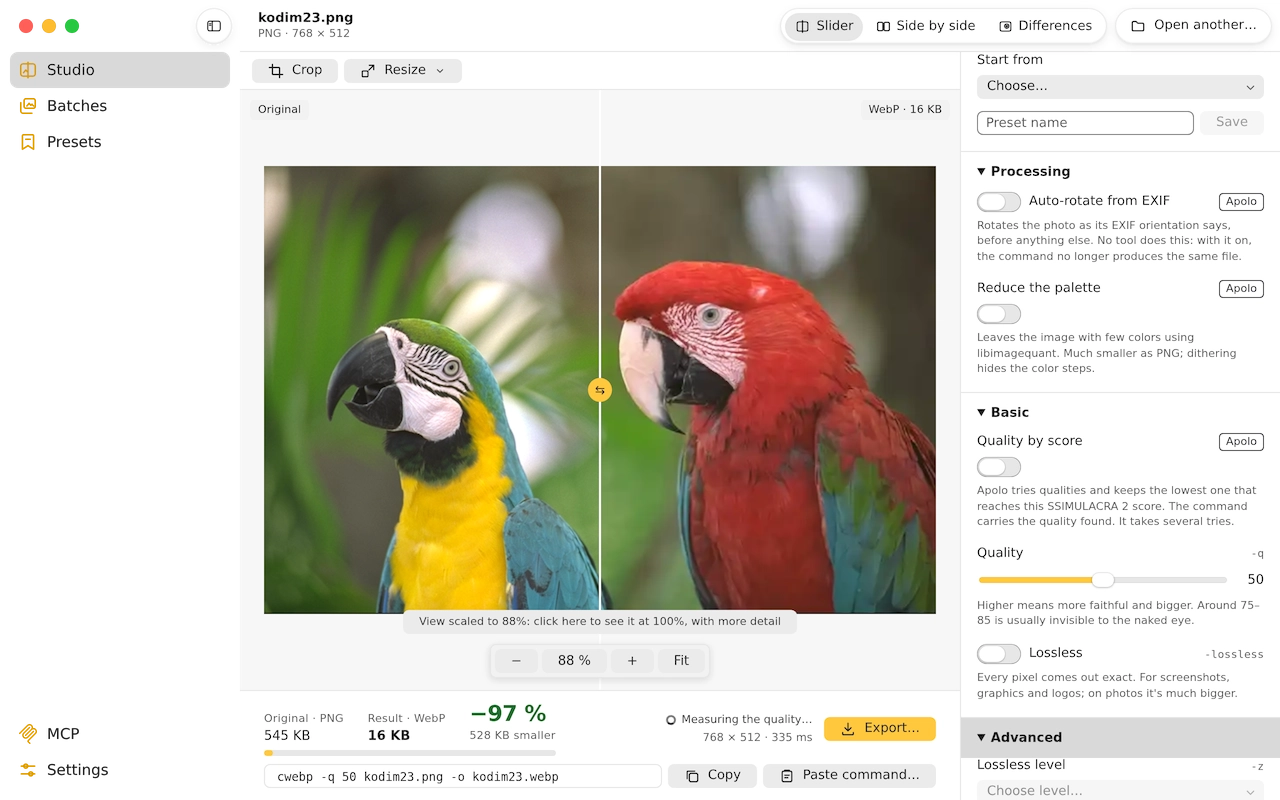
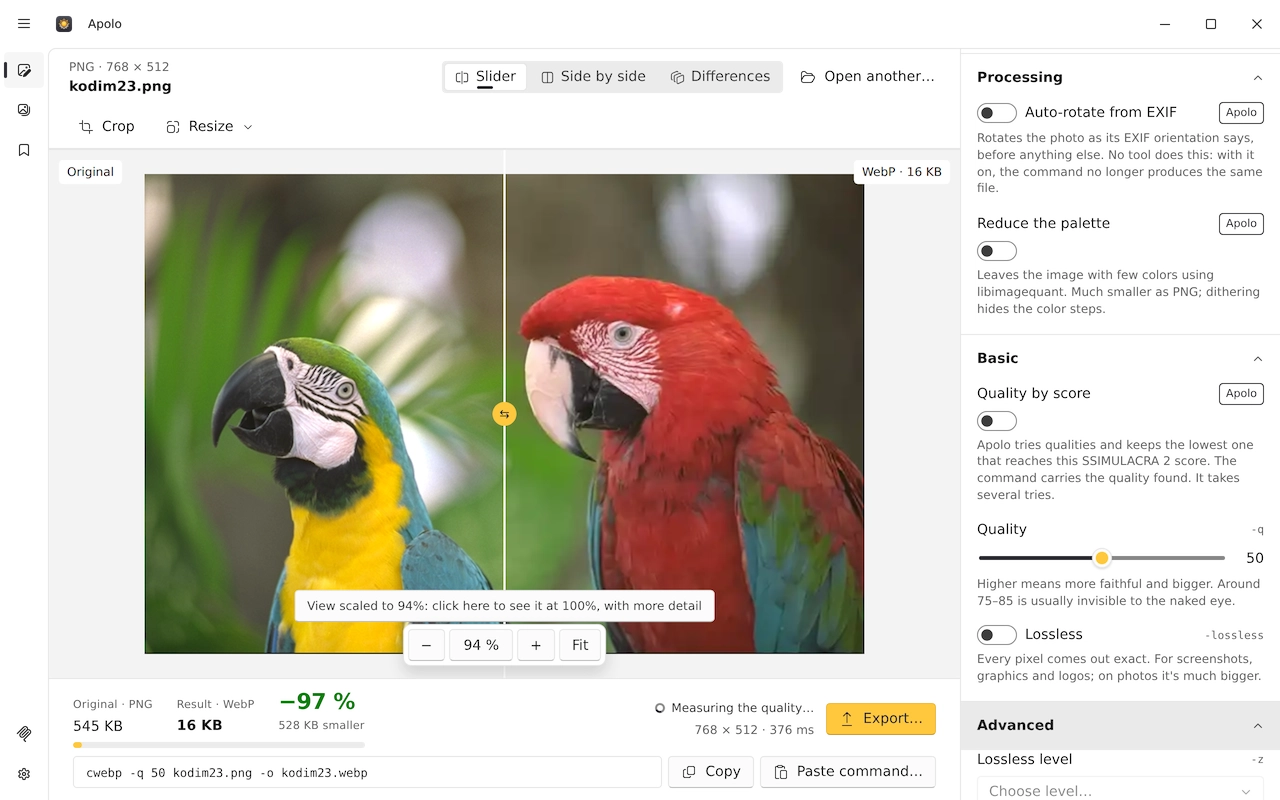
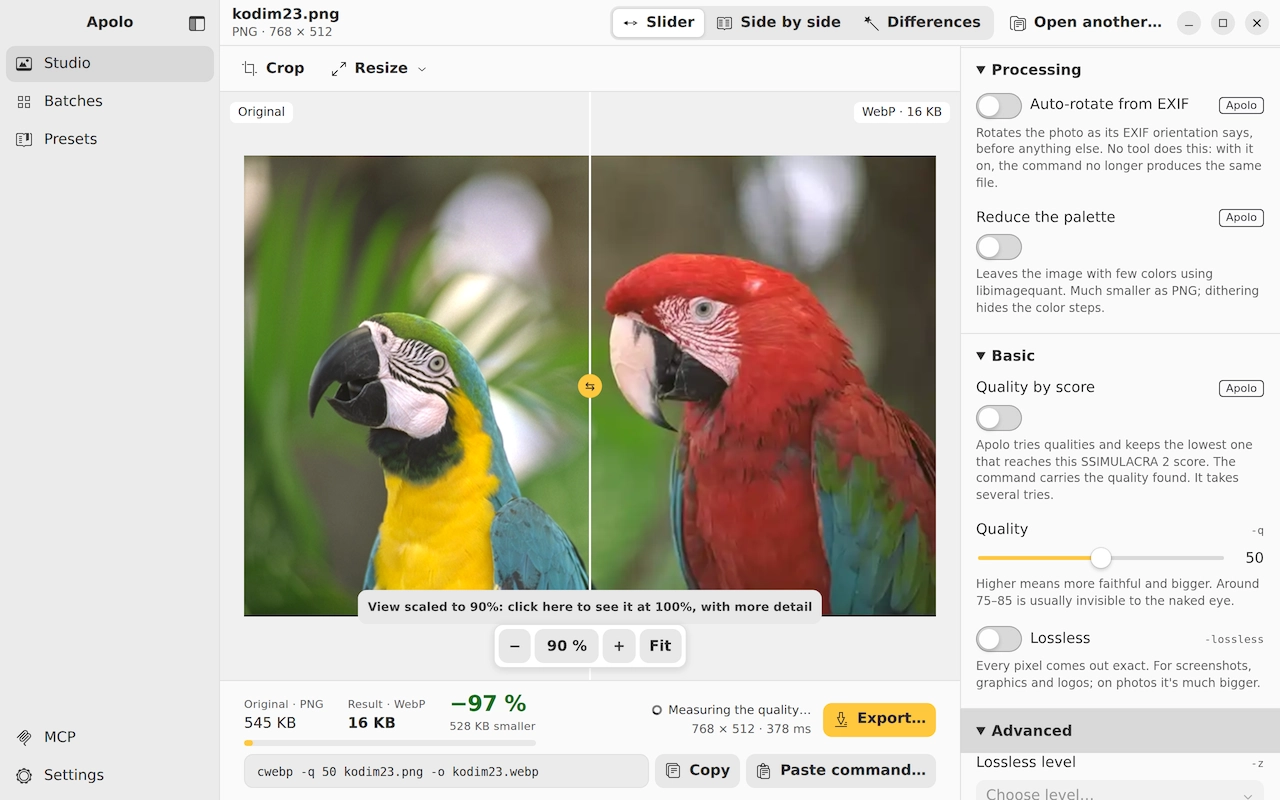
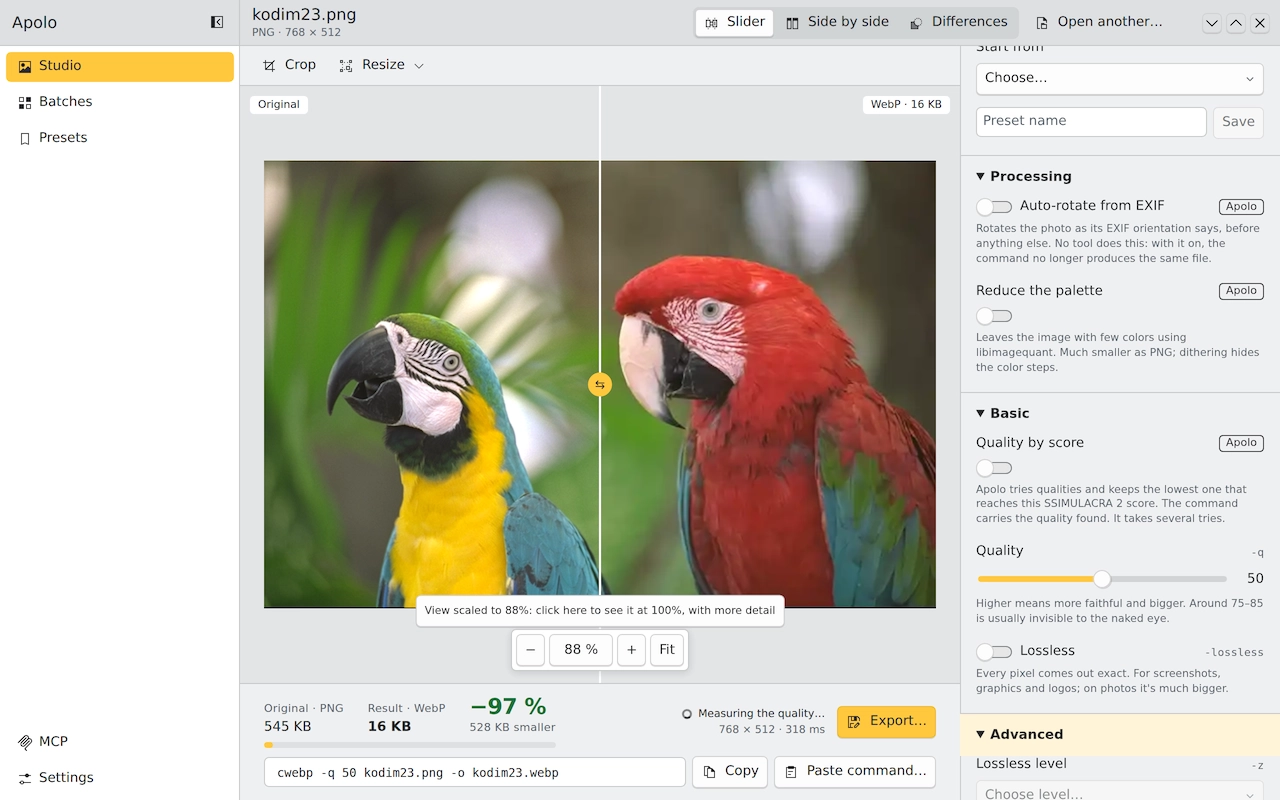
- Open Apolo and drag the image onto the window (JPG, PNG, HEIC, TIFF, GIF, BMP…).
- Choose WebP in the format panel.
- Move the quality, or ask for a score with “Quality by score” and Apolo finds the lowest quality that reaches it.
- Look at the result with the slider or side by side, with each side's size and SSIMULACRA 2 score.
- Press Export: the original is left untouched.
Many at once
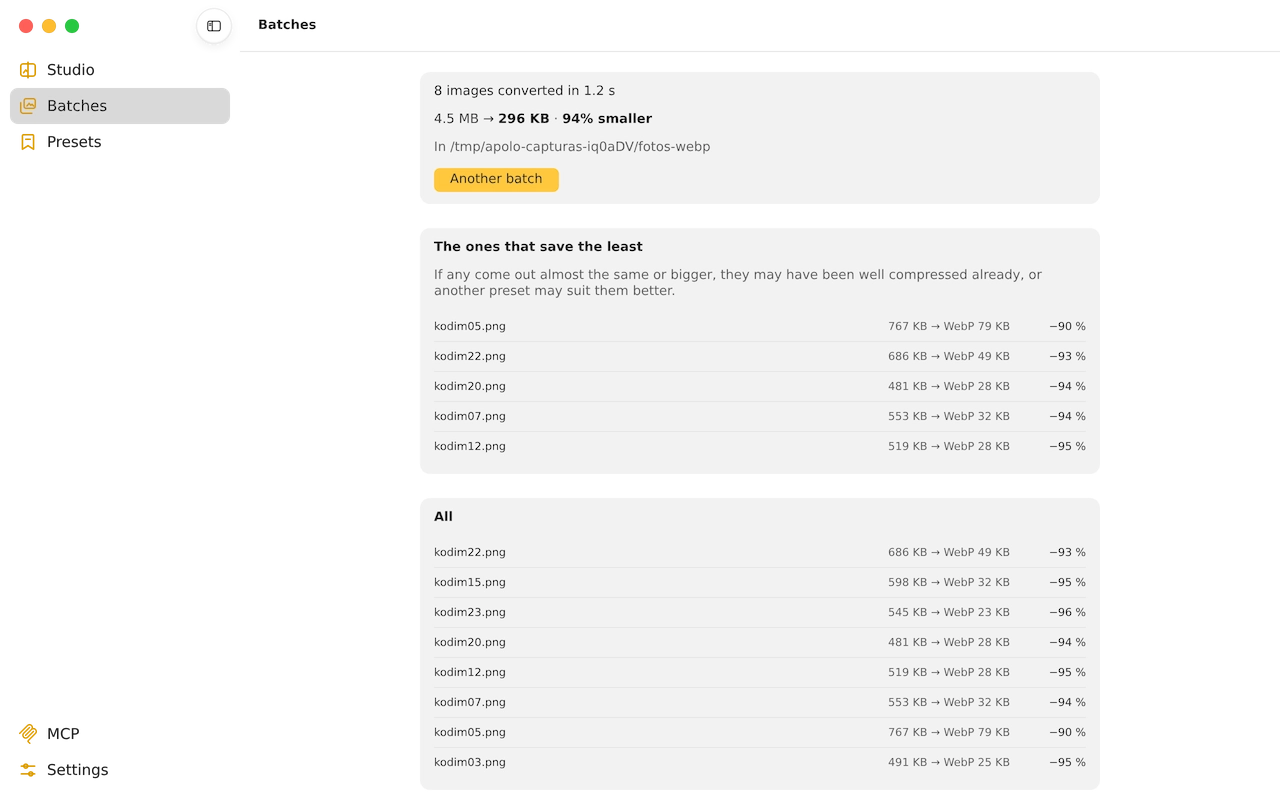
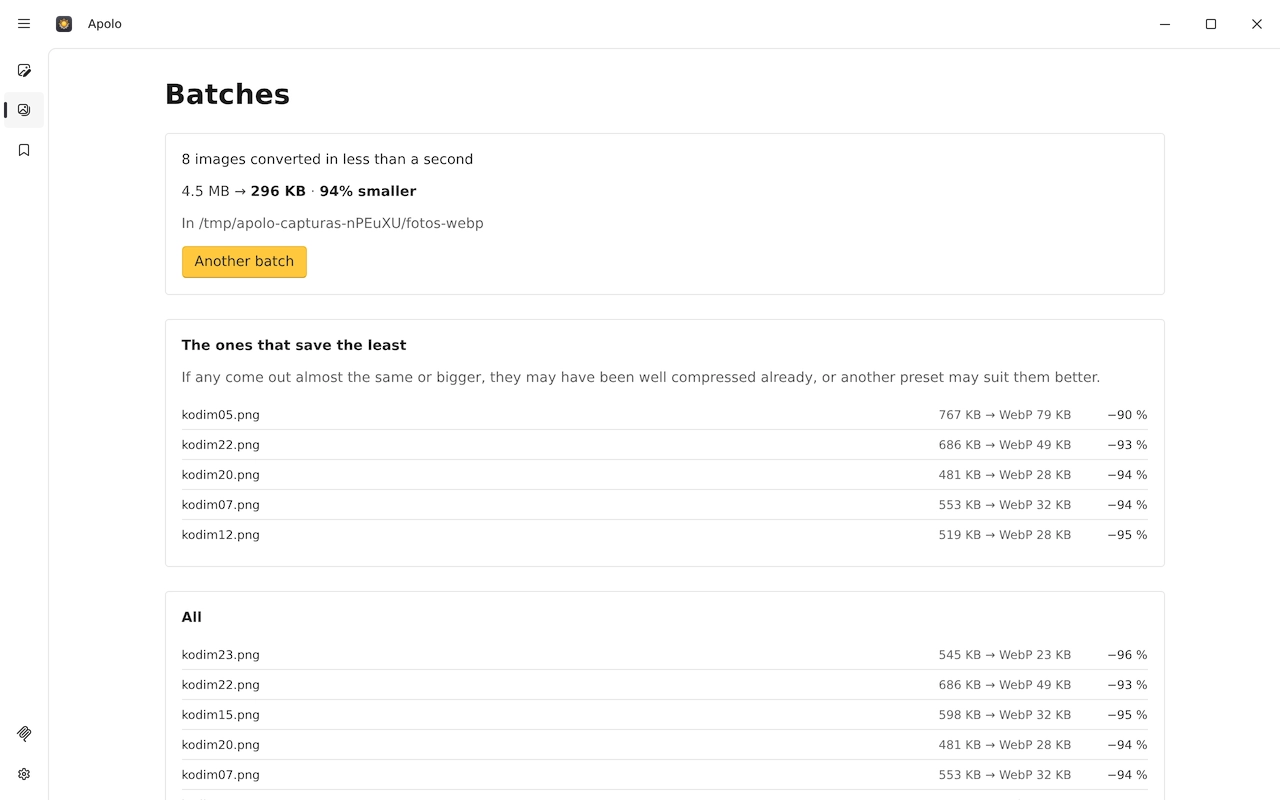
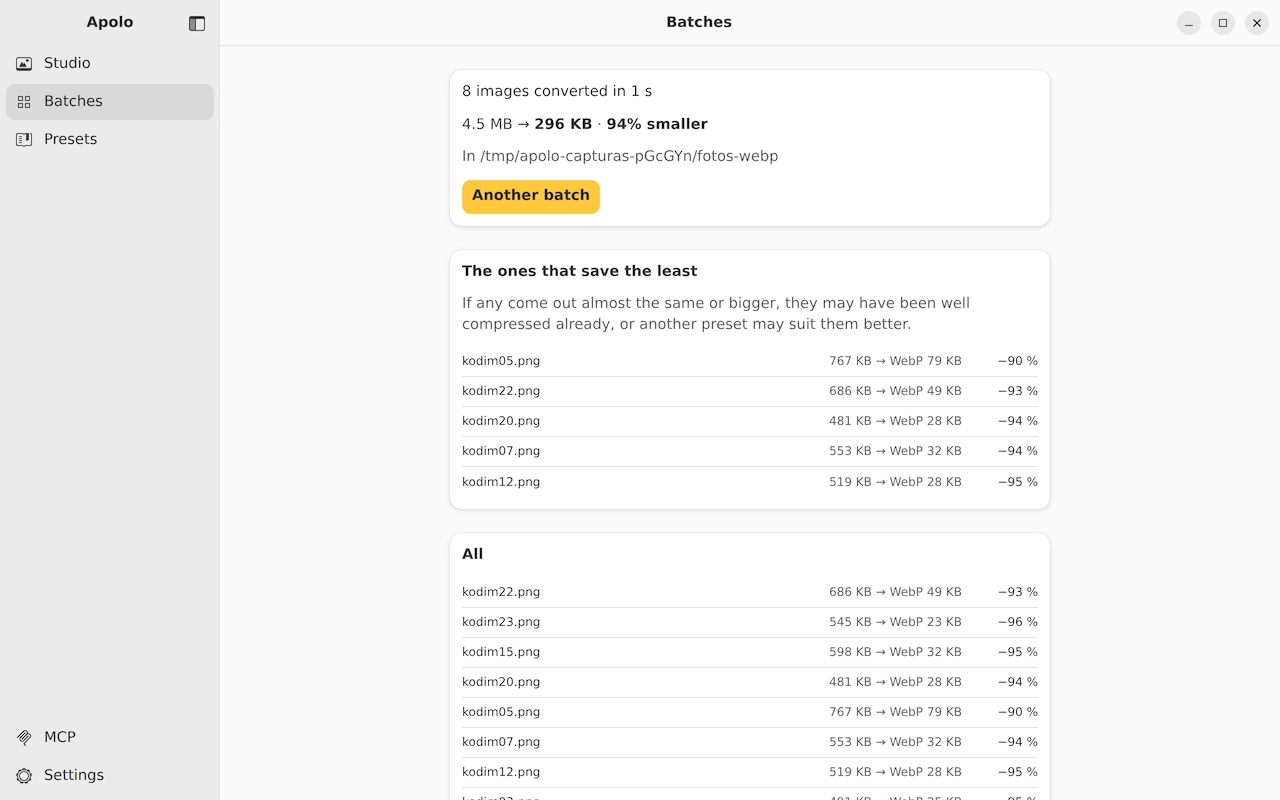
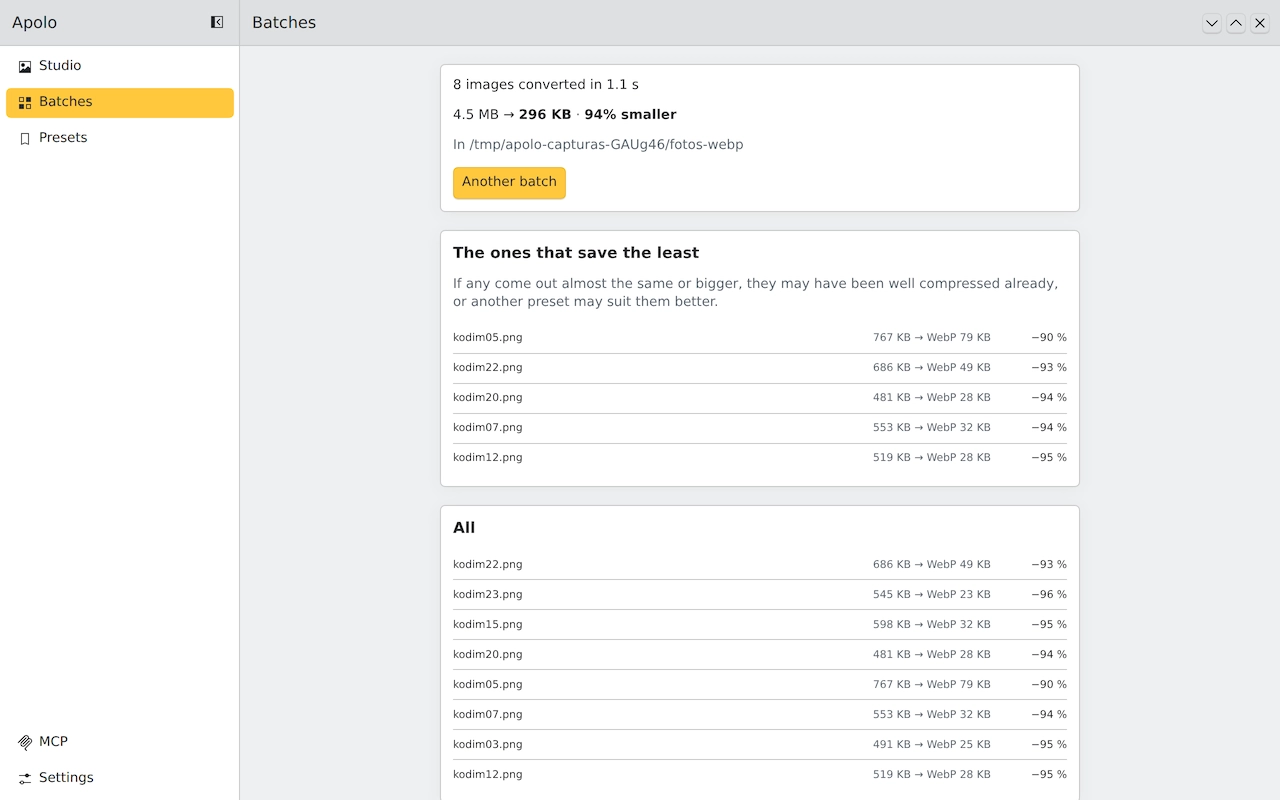
In Batches, choose a folder, WebP and the preset: Apolo converts them all in parallel, repeats the subfolders and leaves the result next to it, without overwriting anything.
From the terminal
The apolo command line takes cwebp's options and gives the same file, byte for byte:
One photo, at quality 80
apolo webp -q 80 photo.png -o photo.webp
A folder, at the lowest quality that doesn't show
apolo lote photos/ --formato webp --objetivo 80
A screenshot or a logo, lossless
apolo webp -lossless -z 9 screenshot.png -o screenshot.webp
Screenshots and logos: lossless
In images with text, flat colors or transparency, lossless WebP keeps exactly the same pixels and weighs much less: in our test screenshots and logos, 62% less than the original PNG, against the 33% you get optimizing the PNG with OxiPNG.
Keep reading
- AVIF, WebP or JPEG XLHow much each format weighs at the same quality, measured on 24 photos, and which to choose depending on where the image goes.
- Compress without losing qualityLossless or with a loss you can't see: what each path saves and how to know it doesn't show.
- Optimize images for the webSize, format, quality and the HTML to serve them: what really makes a website load fast.